
How to use Multi Factor Authorization (MFA)
Description
Multi-Factor Authentication (MFA) adds an extra layer of security when signing in to SRN. After entering your username and password, you may be asked to enter a 6-digit verification code from an authenticator app on your phone.
Setting Up an Authenticator App
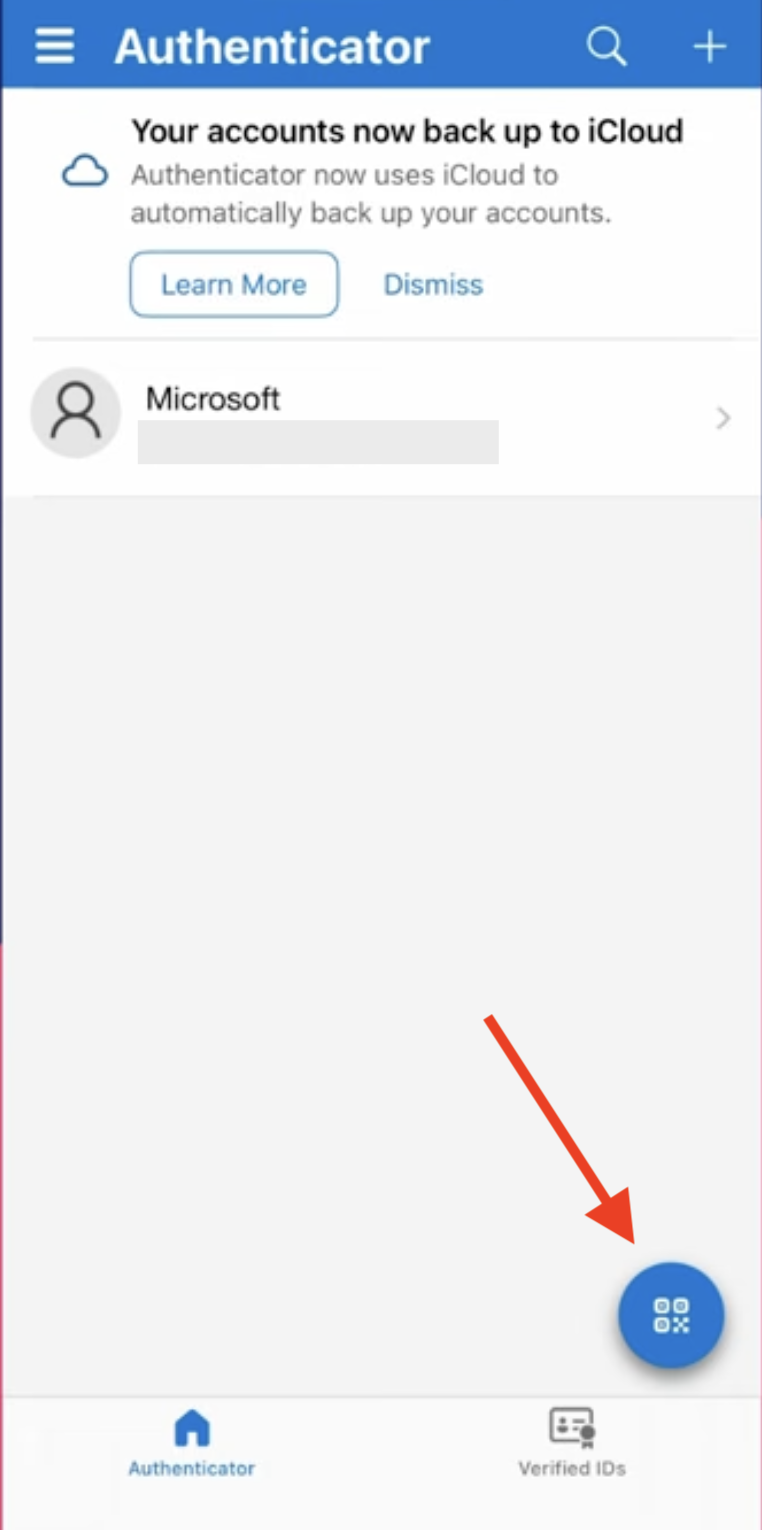
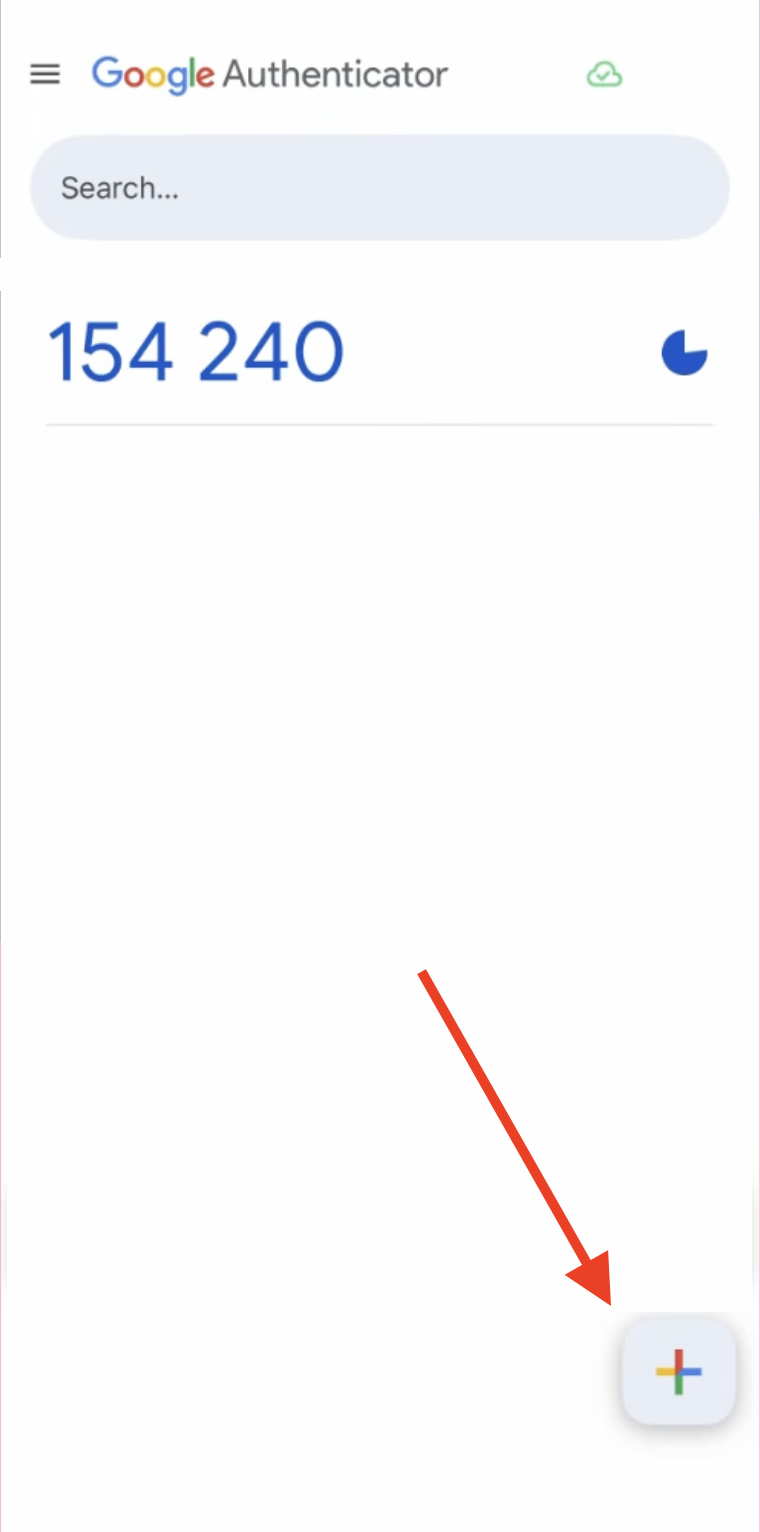
You can use an authenticator app such as Microsoft Authenticator or Google Authenticator to receive your verification code. Microsoft Authenticator is recommended, but Google Authenticator may also be used, especially for Android phones.
- Download and open an authenticator app on your phone.
- In the app, select the option to add a new account.
- Choose Scan a QR code.
- Use your phone’s camera to scan the QR code shown on the SRN sign-in screen.
- After the account is added, the app will display a 6-digit verification code.
- Enter the 6-digit code into SRN to complete the MFA setup or sign-in process.
- PLEASE NOTE: You have a limited time to complete this step. About 30 seconds. If you get the error message “Session Expired” you’ll need to delete the code you generated and start the process over again from your activation email.
Note: Verification codes refresh regularly. If a code does not work, wait for the next code to appear in the app and try again.
Microsoft Authenticator
Google Authenticator
If you lose access to your MFA account or app, please contact your SRN administrator.