
Description
Available to: Agency Admins, Agency Staff
Use the Inboxes/Outboxes to track referrals that have been sent or received by your agency, monitor referral progress, and review referral details. Inboxes/Outboxes include Incoming, Outgoing, Enrolled, Declined.
Navigation
On the left navigation bar click “Referrals,” a dropdown menu appears and then click “Inbox/Outbox”
Inboxes and Outboxes
Search: Allows you to filter a client name or agency (sender or receiver) within Incoming, Outgoing, Enrolled or Declined. You cannot filter for dates, program name, status, agent contact info, or notes.
Team Filter (Agency Admins only): Allows you to filter your Inboxes/Outboxes by Teams.
- Incoming: Referrals sent to your agency/program.
- Outgoing: Referrals sent from your agency.
- Outreach Only: Filters for Outreach Referrals.
- Enrolled: Referrals you have enrolled into your agency/program.
- Declined: Referrals you have denied by your agency/program. See Declining Referrals.
- Urgent Only: Checking this box will filter your Inbox/Outbox to only display urgent referrals. See Urgent Referrals for more information.
List of Referrals
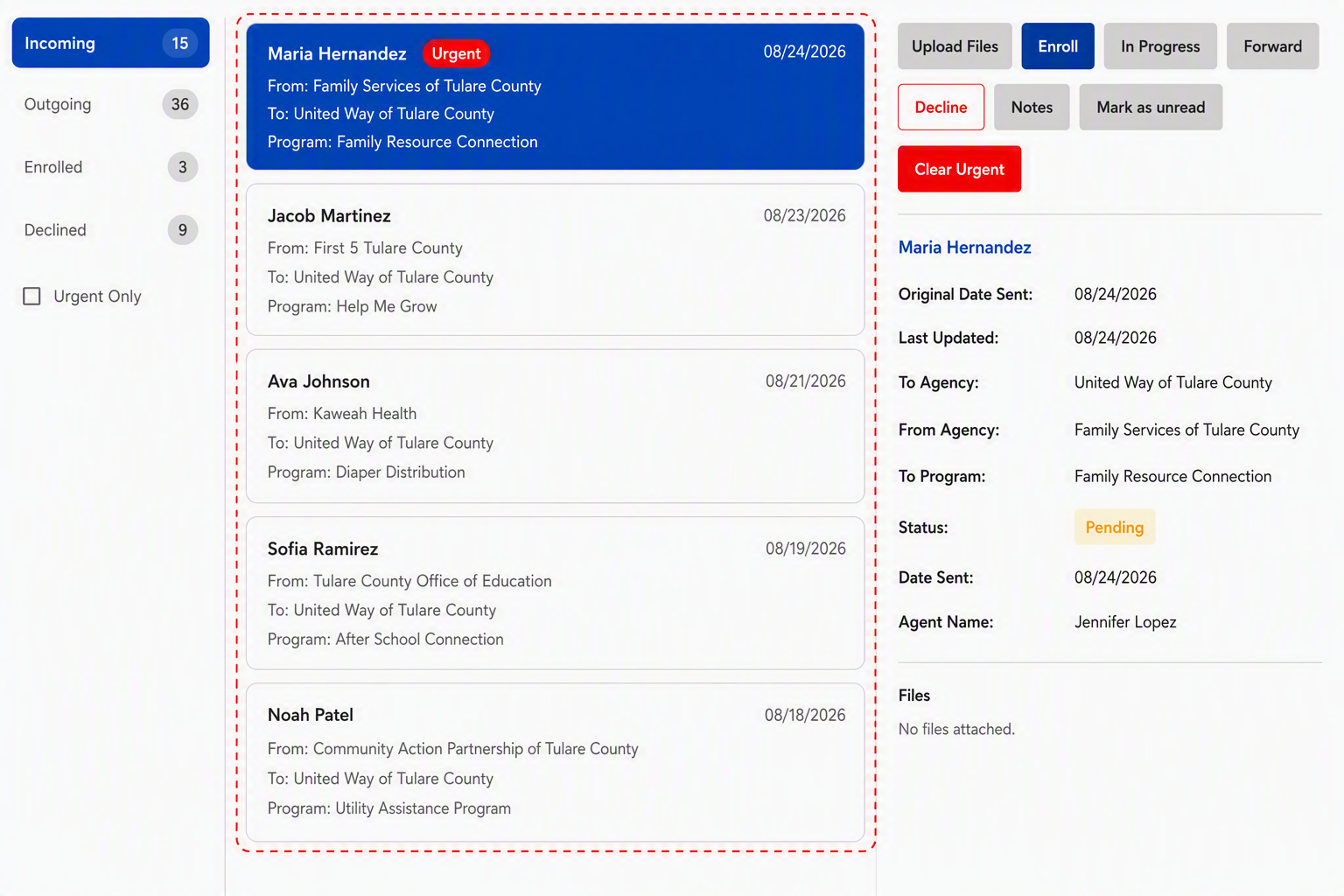
Select Incoming, Outgoing, Enrolled, or Declined to display a referral list. Each referral in the list includes the following information:
- Client Name: The client’s name.
- Urgent Badge: Will display if set by the referring agency to prioritize this referral. See Urgent Referrals for more information.
- From: The agency that sent the referral.
- To: The agency the referral was meant for (your agency).
- Program: The program referral was meant for.
- Date: The original date the referral was sent.
Actions you can take on Referrals
Depending on which tab you have selected, clicking on a referral from the referral list will open the referral and reveal the following buttons/actions you can take on a referral:
Incoming Tab
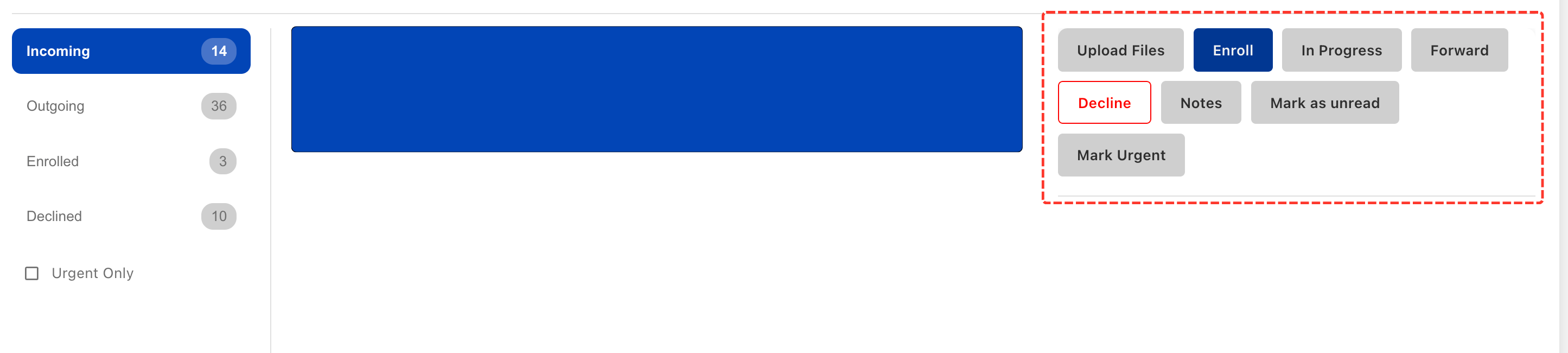
- Upload Files: Attach supporting documents or files to the referral record so they can be reviewed by participating agencies.
- Enroll: Mark the referral as accepted and indicate that the client has been enrolled in the program or service. Referrals will be moved from Incoming to Enrolled and an email notification will be sent to the sending agency.
- In Progress: Update the referral status to show that work is actively being performed, but the referral has not yet been completed. An email notification will be sent to the sending agency.
- Forward: Send the referral to another program or agency that may be better suited to address the client's needs. Referrals will be moved from Incoming to Outgoing. The original agency who sent the referral will be notified.
- Decline: Reject the referral when the program cannot accept or serve the client and optionally document the reason. Referrals will be moved from Incoming to Declined and an email notification will be sent to the sending agency.
- Notes: Add, review, or manage notes related to the referral and any actions taken. You will not be able to edit saved notes once you click Update Notes.
- Mark as Unread: Flag the referral as unread so it can be revisited later and stand out.
- If no action is taken within 90 days of the referral date, it will be automatically declined.
Outgoing Tab
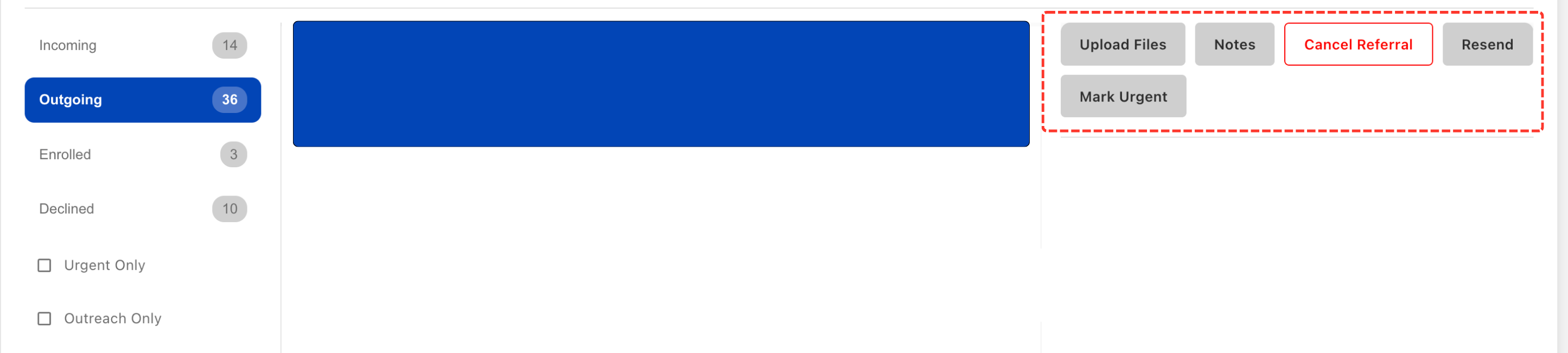
- Upload Files: Attach supporting documents or files to the referral record so they can be reviewed by participating agencies.
- Notes: Add, review, or manage notes related to the referral and any actions taken. You will not be able to edit saved notes once you click Update Notes.
- Cancel Referral: Cancel the referral when it is no longer needed, was sent in error, or should not continue through the referral process. Referrals will stay in your Outgoing tab and will be marked “Closed” and will be removed from the receiving agency’s Incoming tab.
- Resend: A reminder email will be sent to the receiving agency. Your referral in their Incoming tab will remain unchanged.
- Mark Urgent: Flag the referral as time-sensitive to help the receiving agency quickly identify and prioritize cases that may require immediate attention.
Enrolled Tab
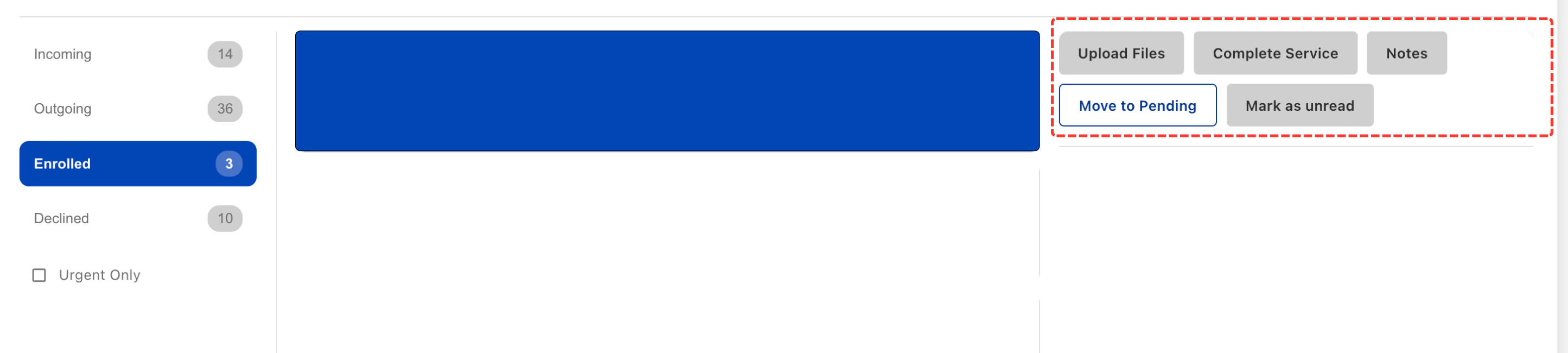
- Upload Files: Attach supporting documents or files to the referral record so they can be reviewed by participating agencies.
- Complete Service: Mark the referral as completed when services have been fully provided to the client.
- Notes: Add, review, or manage notes related to the referral and any actions taken. You will not be able to edit saved notes once you click Update Notes.
- Move to Pending: Return the referral to a pending status if services are not yet complete and additional follow-up or action is needed. Referrals will move from Enrolled to Incoming and an email notification will be sent to the sending agency.
- Mark as Unread: Flag the referral as unread so it can be revisited later and stand out.
Declined Tab
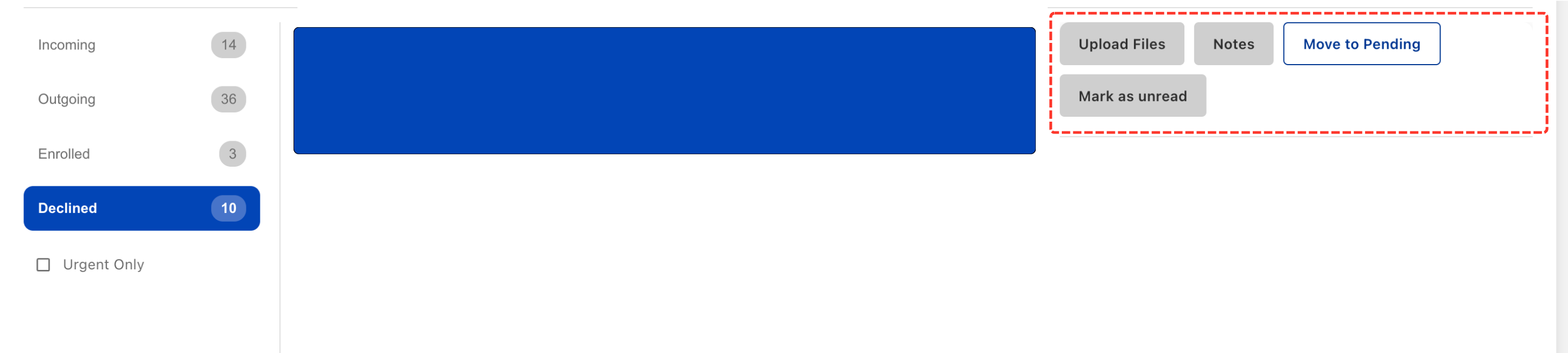
- Upload Files: Attach supporting documents or files to the referral record so they can be reviewed by participating agencies.
- Notes: Add, review, or manage notes related to the referral and any actions taken. You will not be able to edit saved notes once you click Update Notes.
- Move to Pending: Return the referral to a pending status if services are not yet complete and additional follow-up or action is needed. Referrals will move from Declined to Incoming and an email notification will be sent to the sending agency.
- Mark as Unread: Flag the referral as unread so it can be revisited later and stand out.
Referral Details
Clicking on a referral from the referral list will open the referral and reveal the following buttons and details:
Details
- Original Date Sent: The date the referral was first sent by the referring agency.
- Last Updated: The most recent date a status change, note, or other update was made to the referral.
- To Agency: The agency currently assigned to receive and respond to the referral.
- From Agency: The agency that originally created and sent the referral.
- To Program: The specific program within the receiving agency that the referral was directed to.
- Status: The referral's current stage in the referral workflow.
- Date Sent: The date the referral was submitted to the receiving agency.
- Client Email: The email address associated with the client, if provided.
- Client Phone Number: The phone number associated with the client.
- Agent Name: The staff member who created or is associated with the referral.
- Agent Email: The email address of the staff member associated with the referral.
- Files: Displays any documents or attachments that have been uploaded to the referral record.
Referral Statuses
Referrals move through different statuses as agencies take action.
|
Status |
Meaning |
|---|---|
|
Pending |
Referral awaiting review by receiving agency |
|
In Progress |
Receiving agency is actively working with the referral |
|
Enrolled |
Client accepted into program |
|
Declined |
Program unable to serve client |
|
Closed |
Referral has ended |
|
Forwarded |
Referral reassigned to another program |